Unity
Debug a Unity Game Built with AI: Reproduce the Bug Before You Rewrite the Scene
Use a repeatable Unity playtest report to fix input, references, collisions and state bugs without losing a working prototype.
An AI-generated Unity project can look complete while a missing reference prevents the first interaction. Debugging goes faster when you preserve the working scene, reproduce one failure and request a narrow fix. This guide applies to your Unity project; Buildr does not currently generate or repair native Unity exports.
Write the smallest reproduction
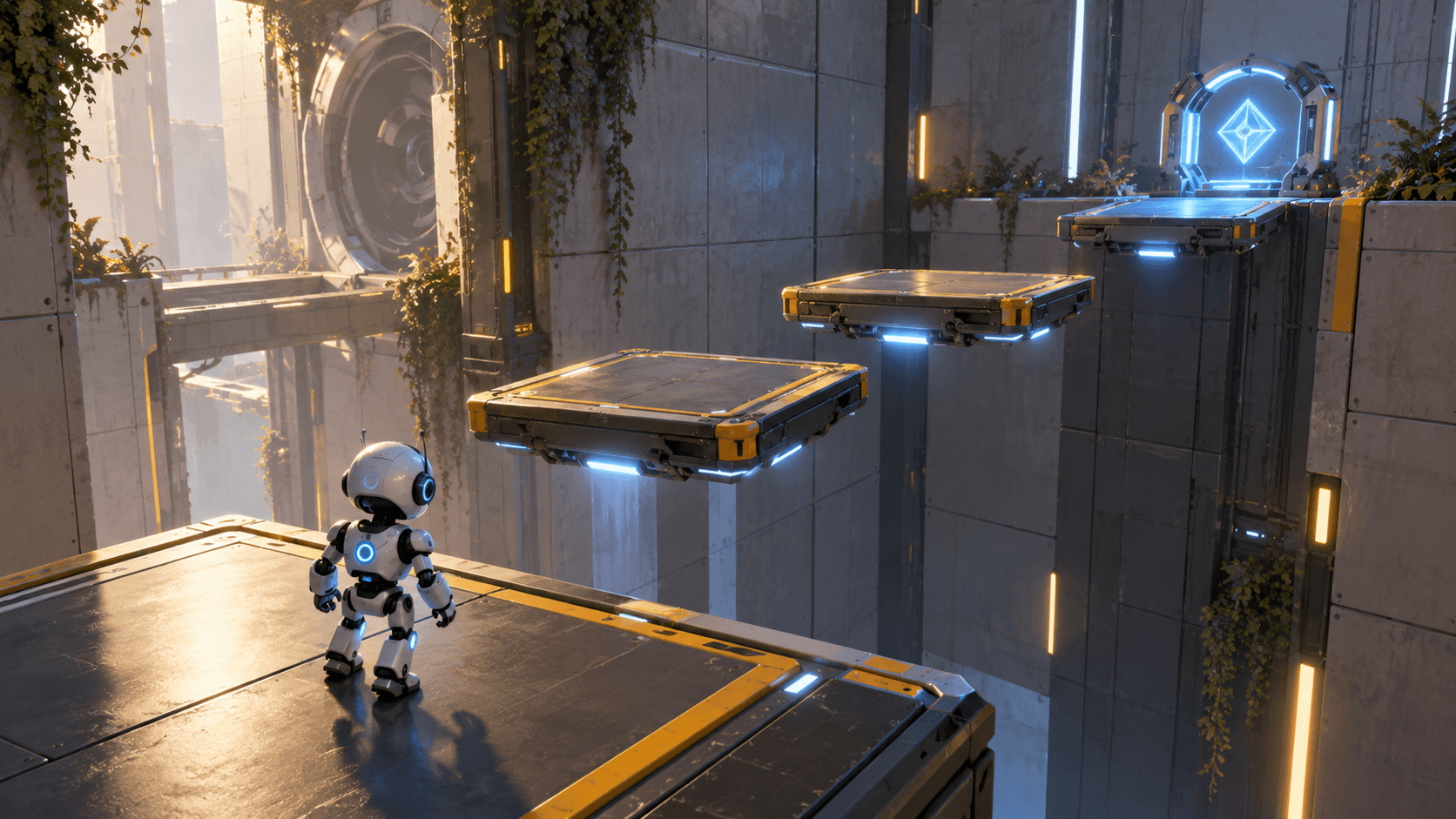
Record the scene, starting state, exact actions, expected result and observed result. Include the first relevant Console error without private data. “The robot falls through the second platform after restarting the scene” gives an AI a place and a state transition to inspect.
Do not combine an input failure with a new art style and a new level. Each change makes it harder to know whether the repair worked.
| Field | Example |
|---|---|
| Scene | TestChamber |
| Start | Fresh Play mode |
| Actions | Move to platform two, fall, press Restart |
| Expected | Respawn above platform one |
| Observed | Character falls below the scene |
| Evidence | Repeats three times; Console shows a null reference after reset |
Check common generated-project failures
Inspect scene references, serialized fields, tags, layers, colliders, input actions and object lifetime. A script can compile while a reference is empty. A collider can exist while being on a layer that the movement system ignores.
Open the project from a clean state and run the same steps. Then test a neighboring case. If restarting clears one object but not another, the underlying problem is likely state ownership rather than the single platform.
A targeted Unity repair prompt
Fix one reproducible Unity issue in the existing TestChamber scene. After the player falls from platform two and presses Restart, the character remains below the level because reset leaves the previous vertical velocity and spawn position active. Expected behavior: reset the player transform to the safe spawn, clear velocity, restore the checkpoint state and remove any stale fall effect. Preserve the existing platform layout, input, art and objective. Verify fresh start, one fall, Restart, a second fall and the completion state. Explain the changed state and any Console error addressed.
This repair request describes the expected state instead of asking for a full rewrite. Keep a copy of the last working scene before another large generation.
Verify in the Unity Editor
Repeat the original steps, then restart from the menu, stop and re-enter Play mode, and test the same failure on another platform. Check the Console after the fix and make sure the win state still works. A repair is complete when the original and neighboring cases pass.
See Buildr's Unity starter guide, browser debugging and the Unity Manual. Explore Buildr for its supported browser and native destinations; investigate and verify Unity-specific fixes in the Unity Editor.
YOUR NEXT BUILD