Unity
Build a Unity Game with AI: Start with One Playable Scene
Scope an AI-assisted Unity prototype around one scene, one player action and one complete objective before adding systems.
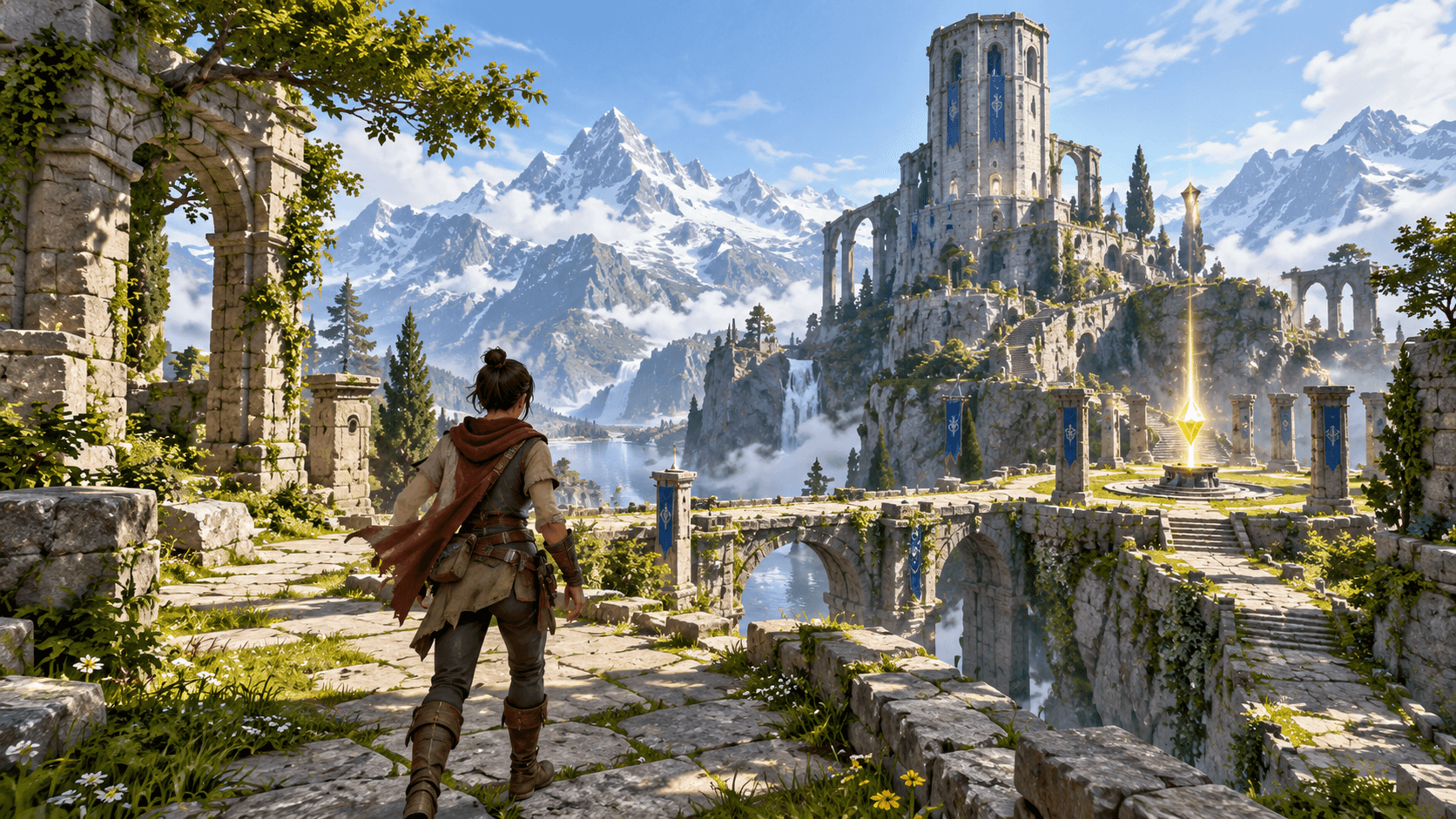
A first Unity prototype should answer one question: is the core action worth repeating? A compact scene with a player, a destination and one collectible can answer that faster than a project with an inventory, settings screen and ten unfinished levels.
This guide covers an AI-assisted workflow in the Unity Editor. Buildr currently offers Browser, Roblox, Unreal Engine and Blender destinations; a native Unity project export is not available. You can explore a mechanic as a browser prototype in Buildr or prepare assets in Blender, then implement and test the Unity version separately.
Define the playable slice
Name the player action, the obstacle and the finish. “Explore a courtyard, collect three beacons and reach the tower” is a playable slice. “Make an open-world fantasy game” is a theme without a test.
Keep the first scene compact enough to restart repeatedly. A small route exposes camera, collision, input and objective bugs quickly. Add a second scene only after the first one has a stable start, play and finish loop.
| Part | First version |
|---|---|
| Player | Move, look and interact |
| Space | One courtyard with a visible tower |
| Objective | Collect three beacons |
| Finish | Reach the tower and show completion |
Ask for a clean Unity structure
Request named scenes, prefabs or scripts only when they support the slice. A clear hierarchy makes a generated project easier to inspect. Ask for setup notes and identify scripts that still need manual wiring.
Do not assume that a beautiful environment has correct colliders, input actions or scene references. Open the project, enter Play mode and inspect the first error before requesting a large visual rewrite.
A first Unity prompt
Prepare a Unity prototype for one third-person alpine ruin courtyard. The player moves, looks around and collects three glowing beacons, then reaches a visible tower to complete the scene. Use a compact modular environment with clear paths, simple colliders and one landmark visible from the starting area. Show objective progress and a complete win state with Restart. Keep the project session-only and exclude inventory, combat, multiplayer and monetization. Organize scenes, prefabs and scripts with descriptive names. Include target-version setup, Play mode testing steps and any manual wiring still required.
This prompt gives the model enough structure to produce something testable while leaving room for your art direction. Change the scene's setting after the loop works, not at the same time as input and objective logic.
Test the native project
Enter Play mode from a clean start. Walk into walls, collect the same beacon twice, leave and return to the scene, complete the objective and restart. Then close and reopen the project to catch missing references or package assumptions.
The Unity Manual is the source of truth for the Editor and package behavior. Explore Buildr's browser and Blender workflows for an early mechanic prototype or asset scene. Unity scripting, assembly and Play mode verification remain a separate native workflow.
YOUR NEXT BUILD