Blender
Create Blender Game Materials with AI: Roughness, Scale and Consistency
Brief an AI-assisted Blender material study that stays readable in a game. Learn to compare roughness, texture scale and repeated material families.
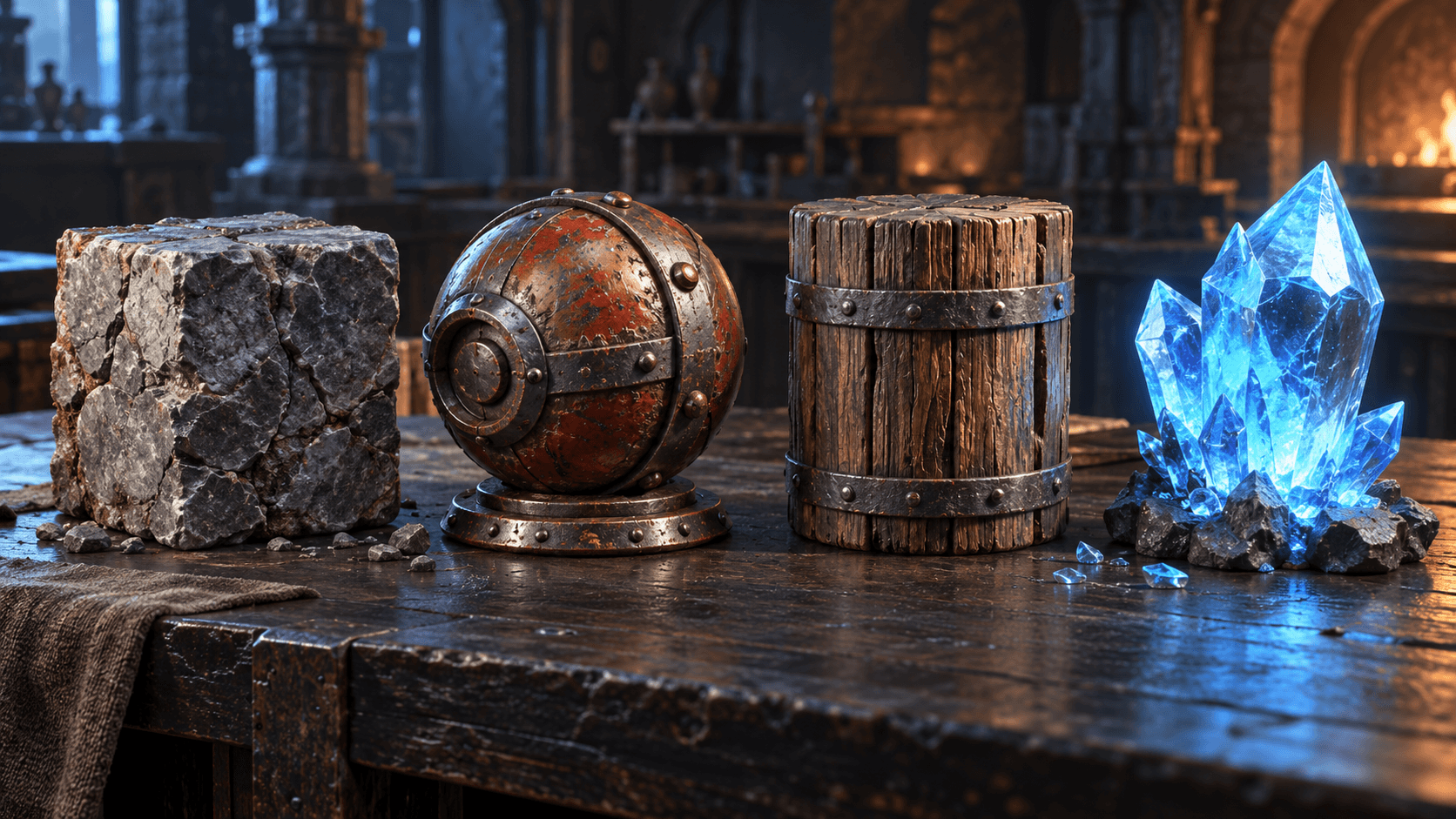
Materials support game readability. A rough stone wall should not look like polished metal, and a collectible should stand out without becoming a glowing distraction. An AI material brief works best when it names the surface, scale and use instead of asking for a generic “realistic texture.”
Start with four samples on simple game props: stone, painted metal, wood and crystal. This makes comparison easier than tuning a different material inside a complicated scene.
Describe the surface at the right scale
Texture detail must match the distance where the player sees it. Large stone blocks can read from far away; tiny scratches may disappear or shimmer. Describe the expected scale and repeat pattern. “Subtle broad grain for a chest seen from three meters away” is actionable.
Roughness often communicates material more reliably than color. Compare a soft highlight on painted metal with the broken highlight on stone. If every material has the same gloss, the prop family loses its identity.
Create a small shared family
Game scenes feel coherent when materials reuse a palette and response. Choose a base color range, roughness range and a small number of accent values. A crystal can be bright and special while still sharing the scene's color logic.
| Material | Main read | Keep consistent |
|---|---|---|
| Stone | Broad irregular form | Scale and roughness |
| Painted metal | Controlled soft reflection | Edge wear amount |
| Wood | Directional grain | Grain scale and tint |
| Crystal | Clear focal accent | Emission restraint |
A material-study prompt
Prepare a native Blender material study for four original game materials: broad rough stone, painted metal with worn edges, directional weathered wood and a translucent blue-green crystal. Place each on a simple beveled sample prop on one dark studio table. Keep texture scale appropriate for a third-person game viewed from several meters away. Use descriptive material names, controlled roughness differences and restrained crystal emission. Light the samples consistently so differences are easy to compare. Include native run and render instructions; do not claim baked textures, UVs or engine compatibility unless they are actually present.
This makes a controlled test scene. Apply one material to a larger environment only after you know what it looks like under the destination lighting.
Check under more than one light
A material that looks excellent under one warm key can disappear under a cool environment. Render a neutral studio version and one simple game-like lighting version. Look for noisy highlights, overly strong emission and texture scale that changes when the camera moves.
The Blender lighting guide covers controlled presentations, and the stylized environment guide shows where a material family belongs. Use Buildr for the scene brief, then inspect it in Blender before exporting.
YOUR NEXT BUILD