Roblox
Design a Roblox Game UI with AI: Menus That Support the Play Loop
Plan Roblox Studio menus, prompts and touch-friendly panels around the actions players need instead of covering the game with buttons.
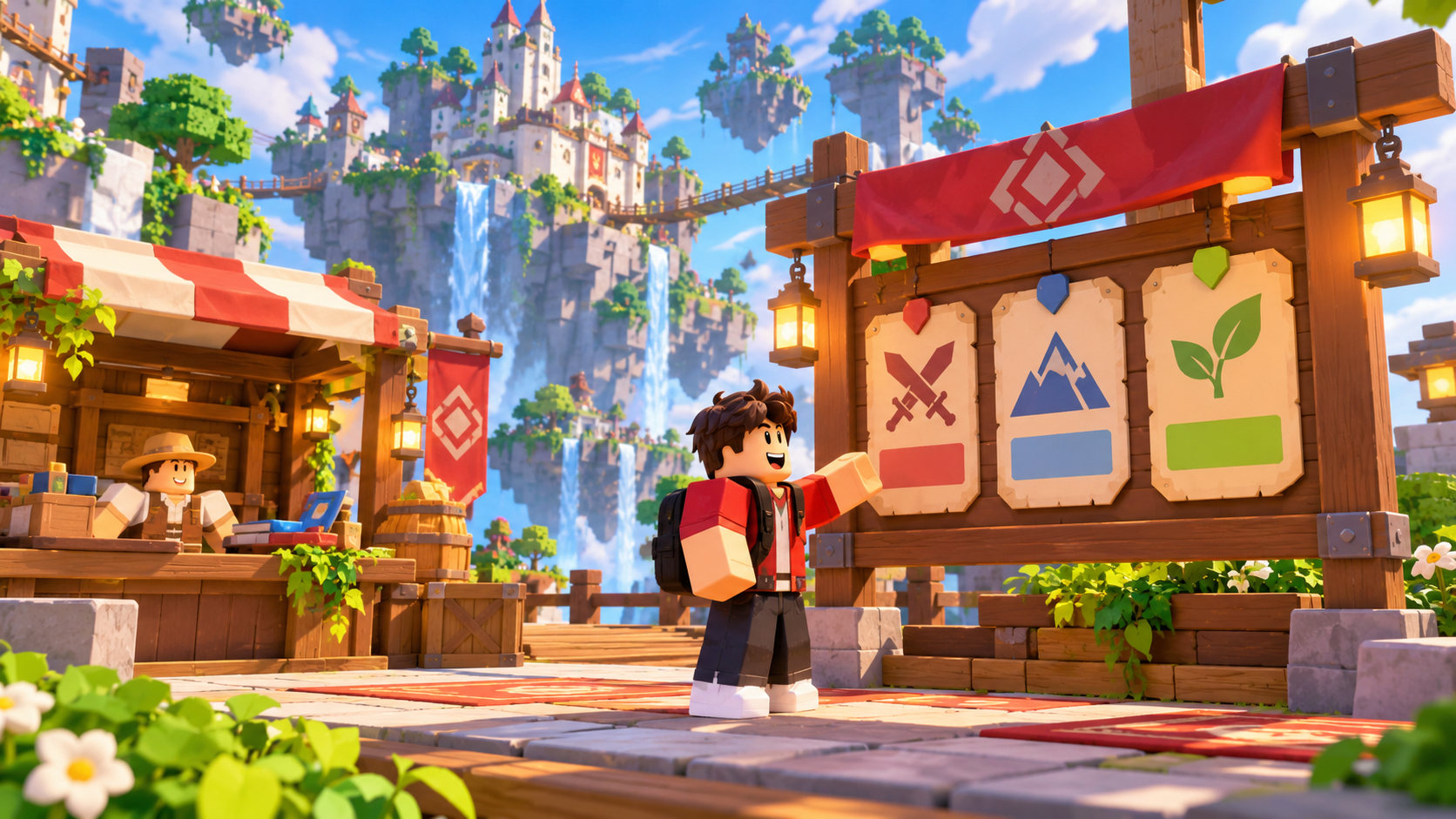
A Roblox interface should help a player take the next action. A quest prompt can identify a destination, a shop can show a real purchase and a pause panel can make leaving safe. A screen full of decorative buttons creates noise without creating play.
Start with one play loop and three interface moments: entering the game, understanding the objective and completing the action. Build the menu in Studio, then test it at the window sizes and input methods you expect players to use.
Separate local display from important actions
Text, layout and hover feedback can be local. A purchase, reward or shared objective must be validated by the server. Roblox's client-server boundary guidance explains why a client button cannot be trusted just because it is visible.
Use short labels and consistent placement. A button that changes meaning between screens teaches the wrong pattern. For touch, use a comfortable target and keep the play area visible after the panel opens.
| Screen | One job | Test |
|---|---|---|
| Start | Enter the play loop | Player can begin without hunting |
| Objective | Explain the next action | Player can repeat it in their own words |
| Shop or upgrade | Make one real choice | Server validates price and ownership |
| Pause | Stop safely | Input and timers behave as intended |
A first Roblox UI brief
Prepare a Roblox Studio UI prototype for a floating village adventure. Add a simple start panel, a compact objective prompt, one upgrade kiosk panel and a pause panel. Keep the center of the play area visible. Use consistent button placement, readable contrast and touch-friendly targets. Local UI may show feedback, but server-side actions must validate player ownership, prices and rewards. Add close, cancel and Restart behavior. Keep the UI session-only and do not add purchases, leaderboards or account saving.
This gives the interface a purpose. Add a second panel only when a real game action needs it.
Test state transitions
Open and close every panel during movement, trigger the objective while the panel is open, press a purchase twice and reconnect during a menu. Check that stale text does not remain after the objective changes. Use Roblox Studio testing modes for multiple clients when shared UI state is involved.
Read Roblox progression and Roblox arena rules, then use Buildr for one interface revision. Verify it in Studio before calling it mobile-ready.
YOUR NEXT BUILD