Blender
Move a Blender Game Asset to Unity with AI: Export One Prop First
Test a Blender-to-Unity asset handoff with one named prop, correct scale, material checks and a reversible export workflow.
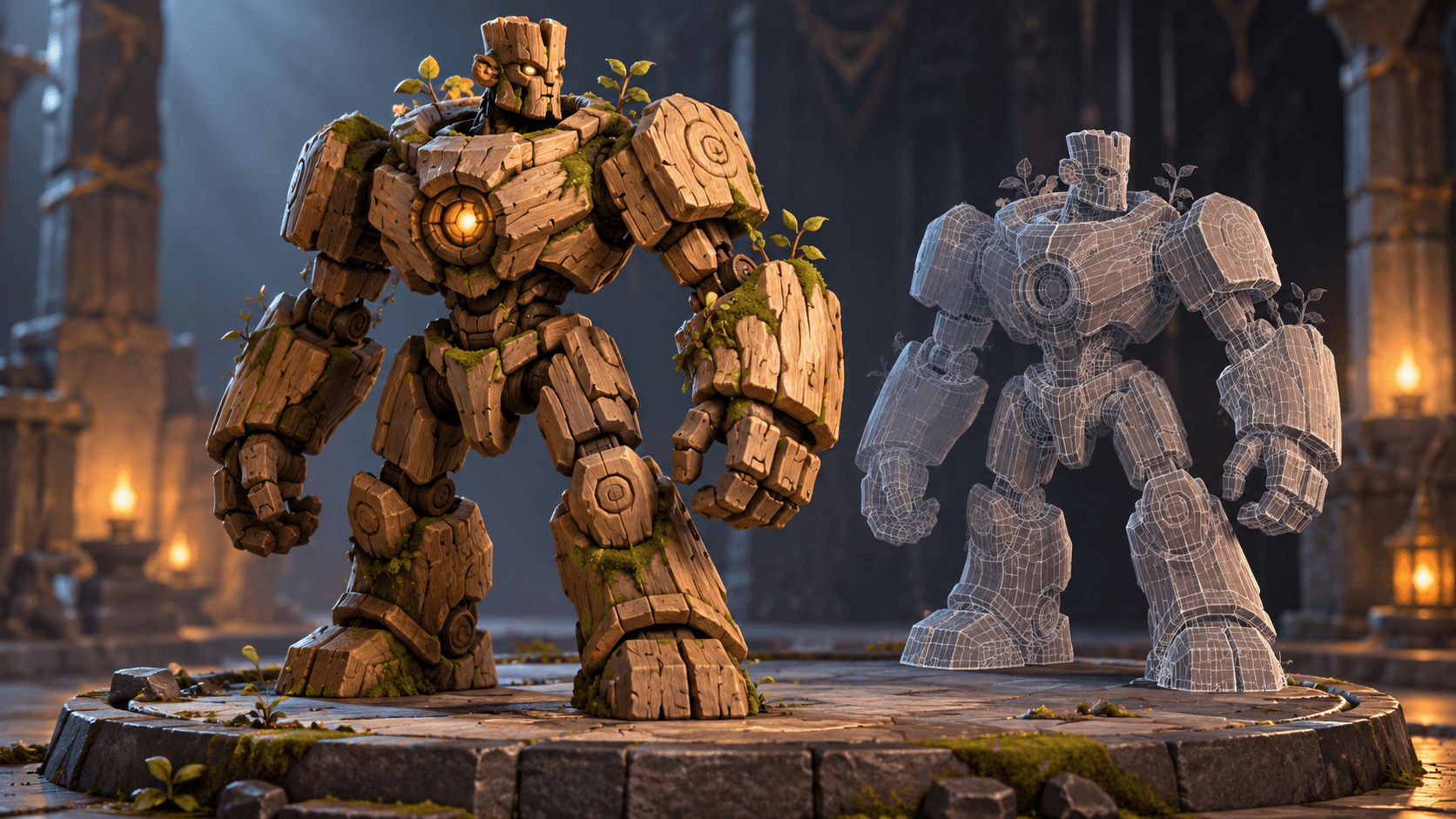
Exporting a Blender asset to Unity is easiest to debug when the first test contains one prop. You can compare scale, orientation, materials and origin without a whole scene hiding the problem.
Lock the asset contract
Name the object, intended units, forward direction, origin and material slots. Decide whether textures are packed or referenced and where the exported file should be inspected. Keep the source .blend available so a failed import does not erase the editable asset.
The Blender glTF export documentation and the Unity Manual are the right native references for current importer and exporter behavior. Generated instructions can become stale across versions.
| Check | Blender | Unity |
|---|---|---|
| Scale | Compare with a known-size reference | Place beside a known-size object |
| Origin | Set intended pivot | Rotate and move the imported asset |
| Materials | Name slots and inspect roughness | Confirm materials and shader behavior |
| Orientation | Check forward and up axes | Verify facing and placement |
A one-prop export prompt
Prepare one original stylized wooden golem prop in Blender for a Blender-to-Unity handoff. Keep the mesh, accessories and material slots named clearly. Use sensible game-world scale, set the origin for rotation at the feet and identify the intended forward direction. Include a clean inspection scene and export instructions for one file. State any manual texture, shader or rig setup that remains. Do not claim Unity compatibility until the exported asset has been imported and inspected in a Unity test scene.
The goal is a verified handoff. Once one prop survives the round trip, apply the same contract to a small family of related assets.
Test the round trip
Export, import into a blank Unity scene and compare the object with the Blender source. Check its size beside a cube or character, rotate it around the origin, inspect materials under a new light and look for missing textures. Then change one source material and repeat the export.
Read the Blender materials guide, Blender character guide and Unity scene organization. Use Buildr to prepare the next focused asset brief and keep the native export check in your workflow.
YOUR NEXT BUILD