Game design
Make Browser Games Feel Good on Mobile: Touch Controls and Readable Play
Adapt a browser-game prototype for touch input, smaller screens and interrupted sessions. Includes a mobile controls brief and real-device test checklist.
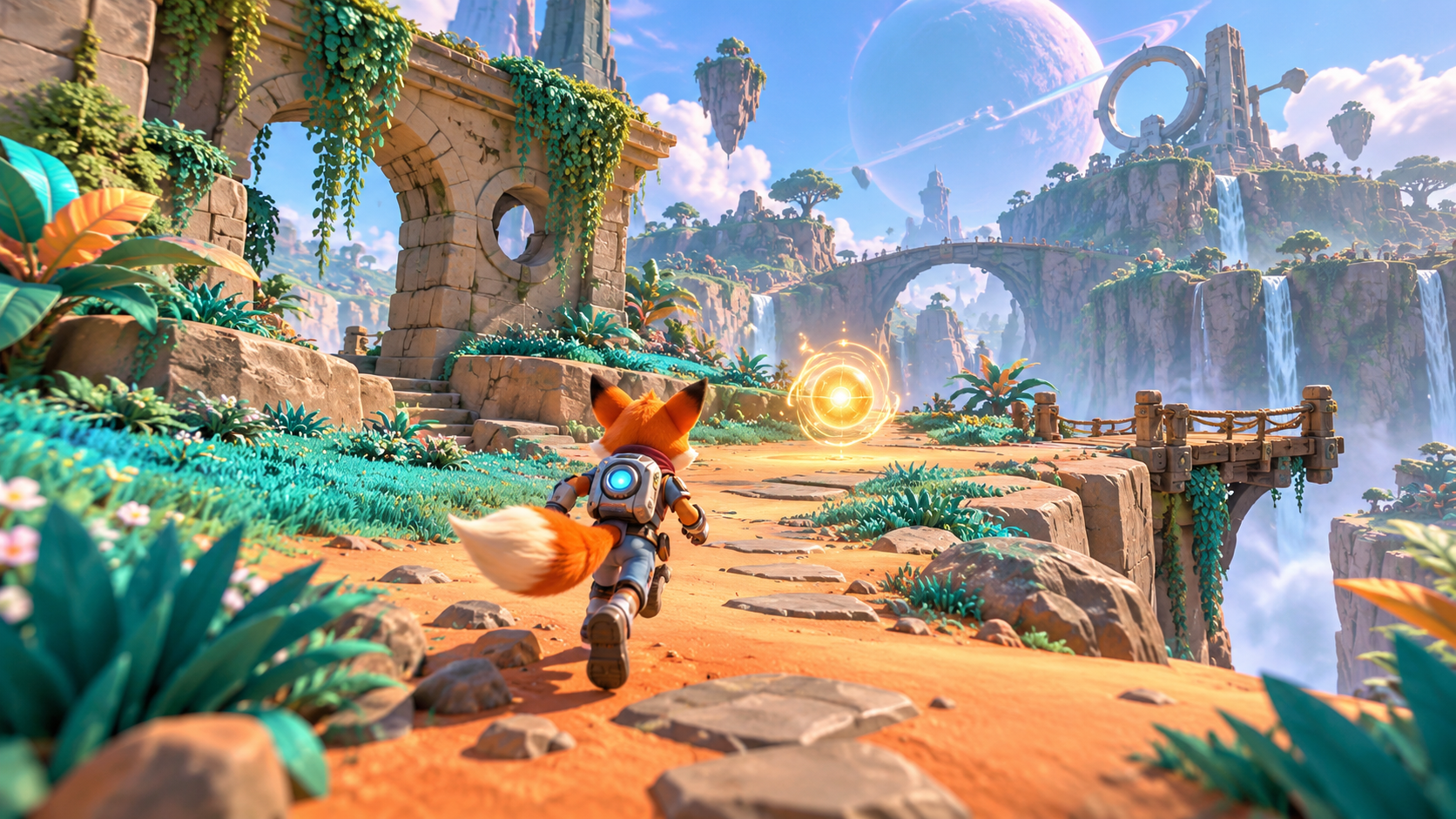
A browser game that feels comfortable with a keyboard can become frustrating on a phone. The player's fingers cover the screen, buttons compete with the camera view, and a tab switch can interrupt a run. Mobile support needs an input and layout brief, followed by real-device testing.
Start with the actions that matter most. If the game needs movement and one ability, keep those available without asking the player to reach across the entire screen. A simplified action game often adapts more comfortably than a prototype with six equally important keyboard commands.
Translate actions, not keyboard labels
“Add WASD buttons” reproduces keys without considering touch. Instead, describe what the player needs to do: steer, jump, confirm and pause. Choose an input method suited to each action. A virtual movement pad can support free movement; tap-to-move can work better for a slower puzzle.
Keep controls away from the most important play area. For a chase-camera game, a left-side movement region and a right-side action region are reasonable starting points. Their exact size and position should be tested on the actual device and orientation you plan to support.
Make pressed state visible
A touch control should show that input has been received. Highlight the pressed button or movement direction, and release the state when the touch ends or is interrupted. A “stuck” movement command after lifting a finger can make the entire game feel broken.
Test simultaneous actions: moving while jumping, holding a direction while pressing Pause, and using a second finger on an action button. The MDN Pointer Events guide describes the browser input model that can handle different pointer types.
| Situation | Expected behavior |
|---|---|
| Finger lifts from movement control | Movement stops |
| Touch moves outside a button | State remains predictable and clears correctly |
| Two fingers are used | Movement and action work together |
| Tab loses focus | Active input clears; the game handles interruption |
| Device rotates | Layout and camera stay usable |
Keep the game readable at a small size
Large decorative labels can obscure gameplay. Tiny counters can be unreadable. Show only the information needed during play: goal progress, health or time, and the relevant actions. Keep menus and detailed explanations outside the main play view when possible.
Use shape and contrast as well as color to distinguish hazards and collectibles. If a red object is dangerous and a green one is rewarding, they should also differ in silhouette or motion. Test with the screen held at an ordinary playing distance.
A focused mobile revision prompt
Adapt this browser-game prototype for landscape mobile play while preserving the current objective and win/loss rules. Add a clear left-side movement control and one right-side action button with visible pressed feedback. Support simultaneous movement and action touches. Clear input when a pointer ends, is canceled or the tab loses focus. Keep the center play area visible and prevent game controls from unintentionally scrolling the page. Resize the HUD for a small screen without clipping. Include Pause and Restart, and keep desktop keyboard controls working. Do not change the level or add new mechanics in this revision.
This isolates the controls change. If you also replace the level, enemy behavior and camera, a failure becomes harder to trace. For debugging a particular action, use the AI game debugging workflow.
Test interruption as well as play
Start a run, switch to another tab, then return. Rotate the device during movement. Open a menu while holding a control. Check whether the timer, active input and pause state behave sensibly. Decide whether an interrupted run should pause or continue, then request that exact rule.
A resized desktop browser is useful for layout inspection, but it does not reproduce every touch, performance and browser behavior on a phone. Use a real target device before telling players that mobile support is complete.
Improve the smallest complete loop
Walk through start, play, finish and restart on mobile without using the keyboard. Ask a tester to do the same without coaching. Fix the first confusing action before adding polish. A small game with understandable controls can offer a stronger first impression than a large game that needs repeated explanation.
See 3D browser camera and movement for spatial controls and the first browser-game guide for a complete playtest. Buildr can prepare the revision when a paid plan, credits and model access are available; the device test completes the work.
YOUR NEXT BUILD